

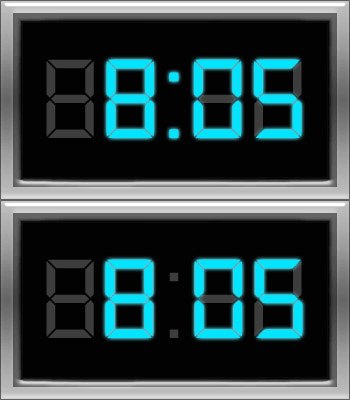
Ok, we will make an animated digital clock, same like most of us have inbuilt in the radio…

Start off by making a new canvas, 350 *200, and fill it with black (#000000)
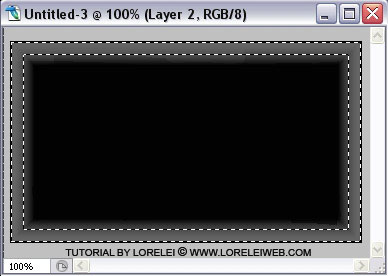
First we will make a frame for our clock. Select the entire canvas and go to Select >> Modify >> Border. Add a 20 px border (the selection will just “move” 20 pixels inside)

Now, in order to select the area that is outside the box (and make a frame), go to Select >> Inverse. Now the 20 px border is selected.
Make a new layer.
Fill it with any color, we used dark gray but it’s pretty much optional.
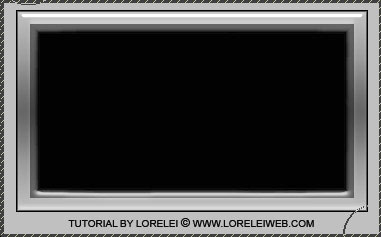
While this new layer is selected, go to Layer >> Layer Styles >> Options, and apply these settings, in order to get a stylish metal frame.
Drop Shadow
Inner Shadow Use the #CCCCCC color
Inner Glow Use the #666666 color.
Bevel and emboss
Contour Use the “Gaussian” shape
Satin Use the “Rolling Slope” shape, #FFFFFF colour.
Gradient Overlay Gradient between #CCCCCC and #666666
Stroke
This is the frame you got…
Now to the more complicated part. Select the typing tool and type
88:88
You have to use some “digital / LCD” font for this. We used “DS Digital”, which you can download free at dafont.com. Size: 123 px, colour: #3d3d3d

thank u
[…] 7. DESIGN ANIMATED DIGITAL CLOCK WITH LIVE LCD INTERFACE […]
[…] 7. DESIGN ANIMATED DIGITAL CLOCK WITH LIVE LCD INTERFACE […]
[…] 7. DESIGN ANIMATED DIGITAL CLOCK WITH LIVE LCD INTERFACE […]