

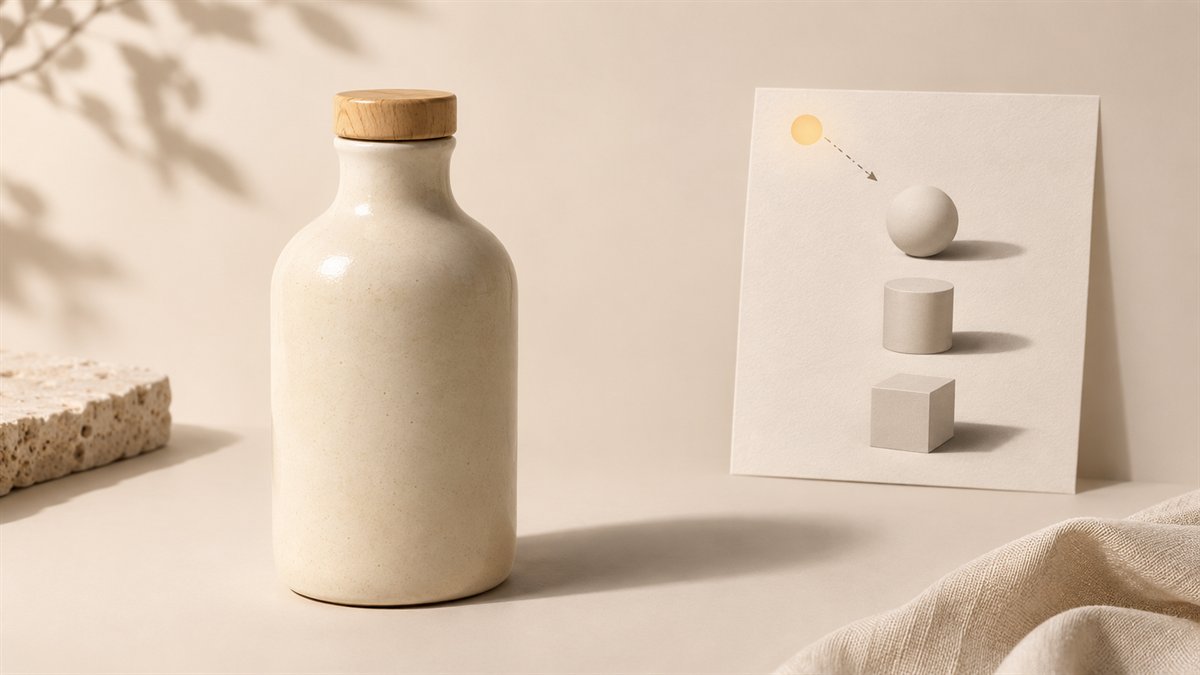
A product mockup has to do two jobs: show the item accurately and make its setting plausible. Generative Fill can help with the second. It can also alter details that buyers may take as real. That is why the product itself should remain traceable to a genuine photo or approved render.
Build the scene without rewriting the product
Start with a clean product image on its own layer. Decide where the item rests and from which direction the light comes. Select the background area to extend or change, leaving the product and its label outside the selection. Adobe’s Generative Fill guide describes selection-based edits and variations; Adobe also explains that a selection helps keep changes within the intended area.
For a product on a tabletop, a useful prompt is brief: “Matte pale stone surface, soft daylight from the upper left, subtle texture, no additional objects or text.” The prompt supplies scene direction. The actual product photo supplies the product facts. Review the generated surface for impossible perspective or reflections before working on the shadow.
Inspect three parts of the shadow
- Contact shadow: Look at the narrow, darker area where the item meets the surface. If there is a bright gap under a resting object, it appears to float.
- Cast shadow: Its direction should agree with the visible light. A large, sharp shadow under soft window light is a mismatch.
- Ambient shading: The underside and nearby surface usually have a broader, weaker darkening. Keep it subtle; a uniform oval pasted underneath looks synthetic.
These are visual checks, not a requirement to create three separate effects. Some products and lighting setups will show little cast shadow. Judge the mockup against the source image and the proposed scene rather than forcing a formula.
Correct the mismatch in layers
If Generative Fill produces a useful setting but weak grounding, keep that variation and correct the shadow with a separate masked layer. Match the contact point first. Then adjust the cast shadow’s angle, softness, and opacity to fit the scene. Zoom out to the size at which the mockup will appear on the website; a correction that looks convincing at 200% can become a dark blob in a product card.
Compare the original product layer with the finished image. Check edges, handles, openings, printed labels, and color. If any detail changed, restore it from the source. A mockup that adds a nonexistent port or changes packaging copy is inaccurate even if the shadow is excellent.
When to use another method
For a catalog image where exact appearance matters, a photographed setup or carefully controlled manual composite may be safer. Generative Fill is useful for exploring backgrounds and extending canvas space, but it should not become the sole source of product evidence. If the image is illustrative rather than a faithful product view, label that role clearly in the surrounding copy.
Photoshop feature details checked against Adobe’s selection guide on 3 November 2026.
