
Home / PS Tutorials

PS Tutorials · Tutorial

Design a Military Clothes Texture or Pattern

PublishedDecember 18, 2009
Reading time3 min
Filed underPS Tutorials
Design a Military Clothes Texture or Pattern - PS Tutorials Lorelei Web Design Design a Military Clothes Texture or Pattern — December 18, 2009

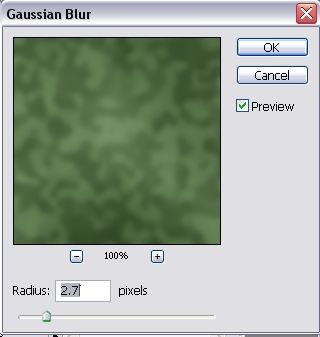
Select the upper layer and go to Filter >> Blur >> Gaussian Blur. Set the radius to 2.7 pixels, and do not overdo the blur effect as too much of it will simply result in loss of blurry effect, it won’t be seen anymore.
Design a Military Clothes Texture or Pattern - PS Tutorials Lorelei Web Design

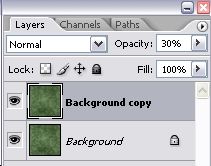
After clicking ok, go to the layers panel and set the opacity of the blurred layer to 30%.
Design a Military Clothes Texture or Pattern - PS Tutorials Lorelei Web Design

While this layer is still selected, go to Filter >> Artistic >> Crosshatch and set these settings for the blurred layer.
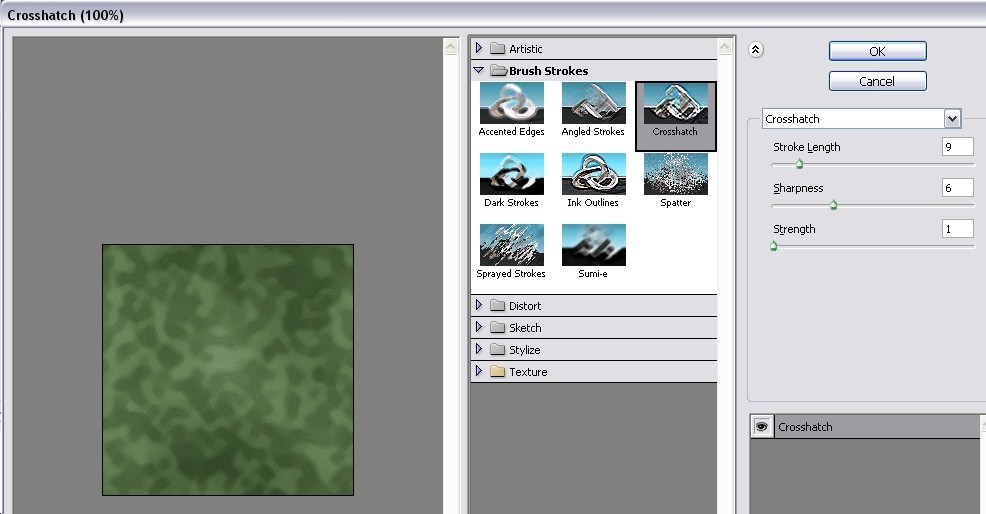
Design a Military Clothes Texture or Pattern - PS Tutorials Lorelei Web Design

Afterwards, repeat the same procedure ( Filter >> Artistic >> Crosshatch ) with the background layer, however you may want to choose a different sharpness, to maintain the natural clothes effect.

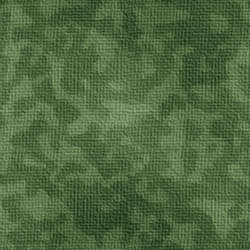
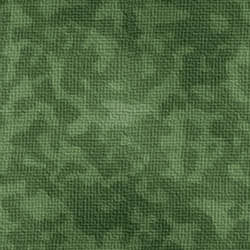
So far your canvas should look like this:
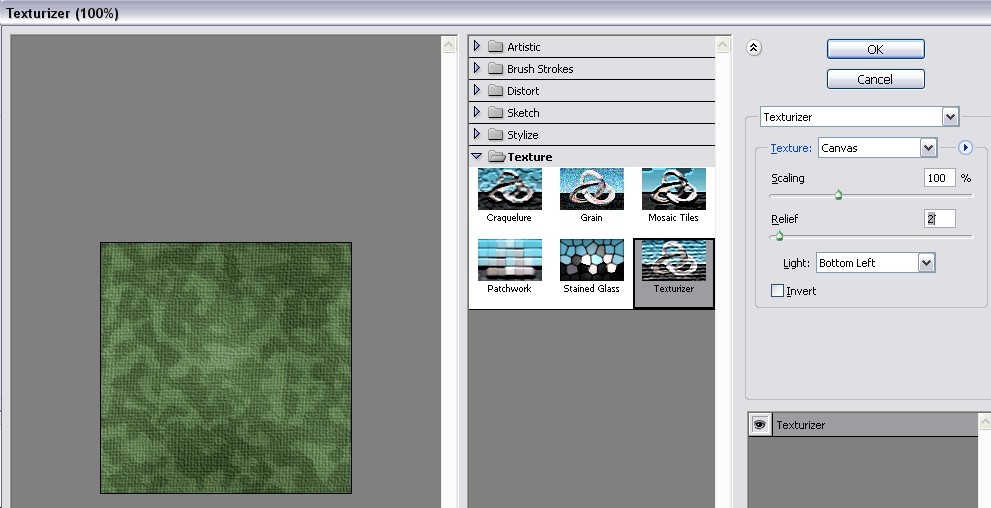
Design a Military Clothes Texture or Pattern - PS Tutorials Lorelei Web Design

If you don’t want to stop here and want to create a full imitation of clothes canvas, go to Filter >> Texture >> Texturazer and apply these settings for the clothes canvas effect.
Design a Military Clothes Texture or Pattern - PS Tutorials Lorelei Web Design

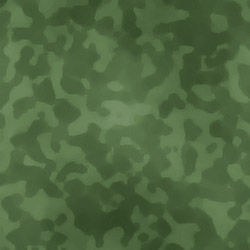
That is it, now you are a solder!

Design a Military Clothes Texture or Pattern - PS Tutorials Lorelei Web Design

Written by

Elizabeth Lorelei Sramek

AI results optimization architect and SEO expert with 20+ years of experience. Crafting strategies that outrank, outperform, and outlast.

Leave a response