

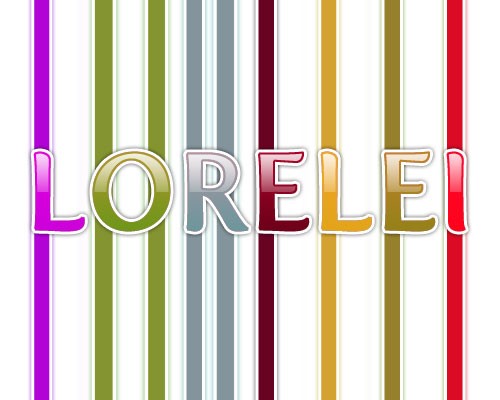
This is a very tutorial for making colorful text, ideal for any kids decoration or web sites. we will be making this..

So, start off my creating a new canvas, 500*400, and fill it with the white color.
Using the “Fertigo” font, type any word you like, and choose the “bold” text.

Go to Layer Styles panel, and load the following settings..
Gradient from dark #5f001f to light bordo – #8e082c
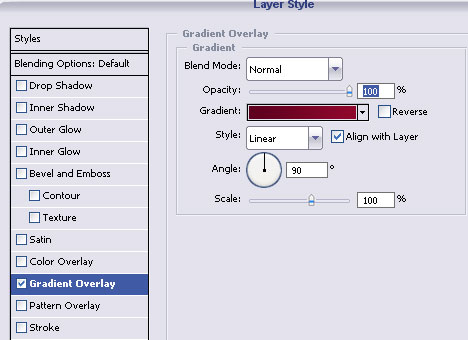
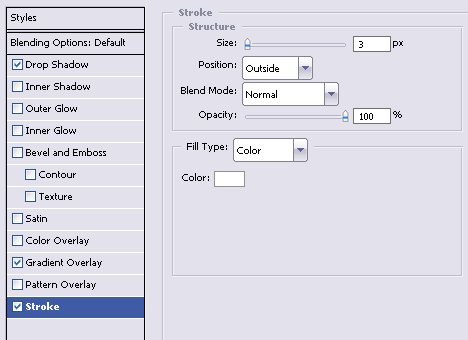
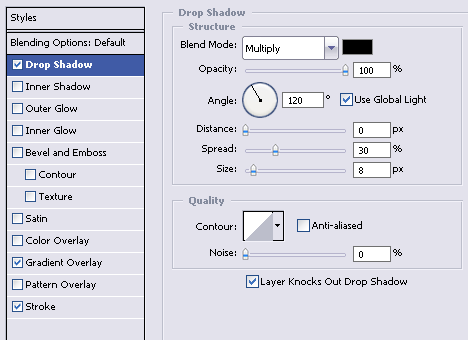
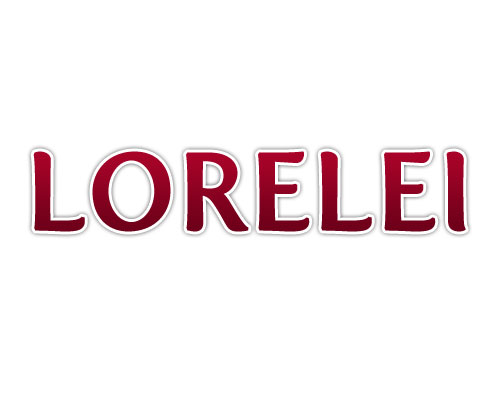
and this is what we got so far..
Now to the more complicated part.
Make a new layer.
Select a brush, hard round, approximately 35px wide, but this fully depends on how thin is your font and how close are your letters.
Select any colour (preferably bright) and simple doodle over the letter.
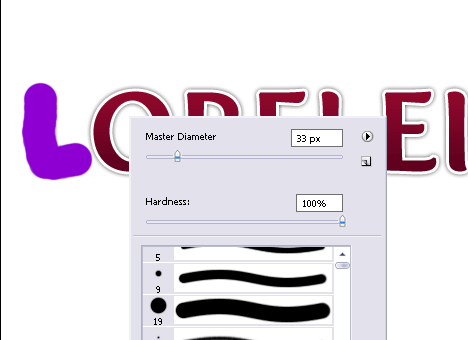
Using the same layer, chose other bright colors and go over each and every letter like this.

Social comments and analytics for this post…
This post was mentioned on Twitter by LoreleiWeb: Design a Glossy Candy Text Effect For Kids http://goo.gl/fb/8ua2…
Very easy tutorial was hopping for more complex steps but easy to follow and well explained.
Hi Loreli,
It’s a nice tutorial I actually enjoyed but would be great to see some more complex works like the text effects you used to do before.
Will the fantasy art tutorials be revived… ever? 🙂
TOTALLY GREAT!!!
Awesome tips. I never thought photoshop would be this easy. Thanks for sharing!
[…] google_ad_width = 250; google_ad_height = 250; More Photoshop Tutorials Posts LoreleiOver the internet, I'm a web designer currently working only for my own company but […]
Doesnt workk 4 me =( I got over it another way, but when I choose screen everything changas to rly ugly colours, without right shape etc
Hi! I love this design & effect. I’m kinda new at this so I wanted to ask you first. I’m not sure what the rules are regarding using tutorials in my own site design. If I recreated this am I able to use it in my own design? Do I need to credit you? Or pay a license fee? Please let me know.
Thanks!
for the last step , I could not select the colours… i get this error “warning: no pixels are more than 50% selected the selection edge will not be visible”