

Jan 9, 2010

Posted by Lorelei in Photoshop Tutorials | 13 Comments

Design Thai-Styled Angelic Artwork From Ordinary Photos

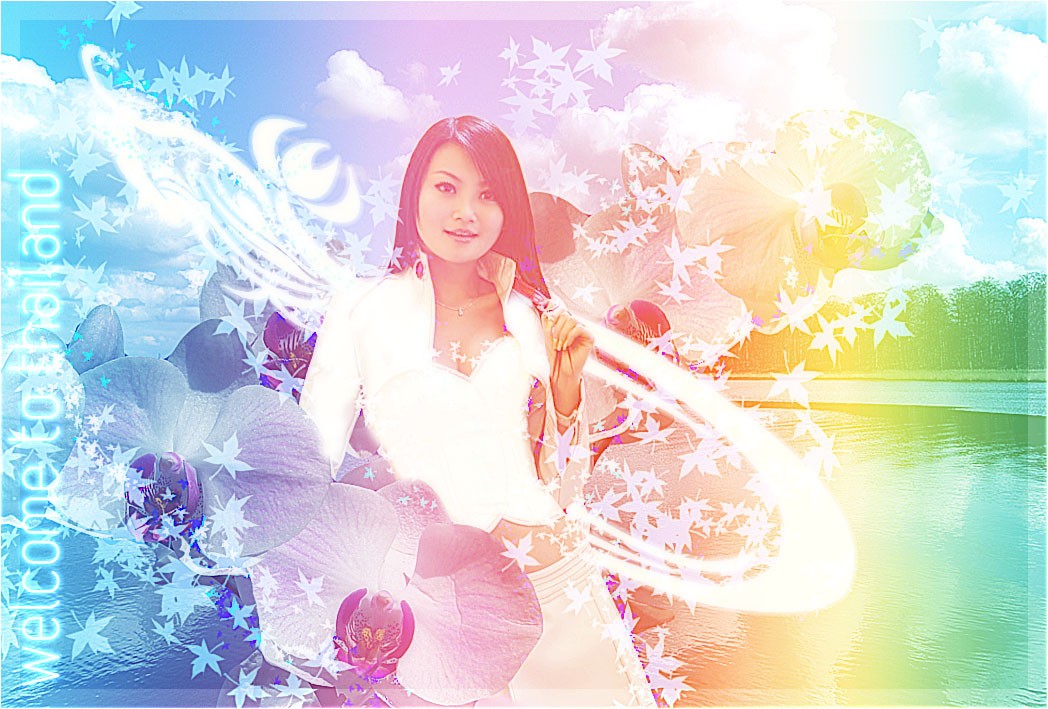
I really like the rainbows and compositions combined from flowers and beautiful women, so today we will be making a composition titled “Welcome to Thailand”. We will make a combination based on 3 simple photos, work with Curves, Brushes, Layer Styles and Blending options. This tutorial is suitable for beginners as well as advanced users and if you have any questions, please feel free to leave a comment and ask, I will be happy to help you out, if I can.

We will be making this (full view)
Ingredients:

Step 1:

As always the first step for creating a composition is cropping out the main characters, so using the magnetic marquee Tool or Pen Tool (whichever you find more useful), crop the lady out…

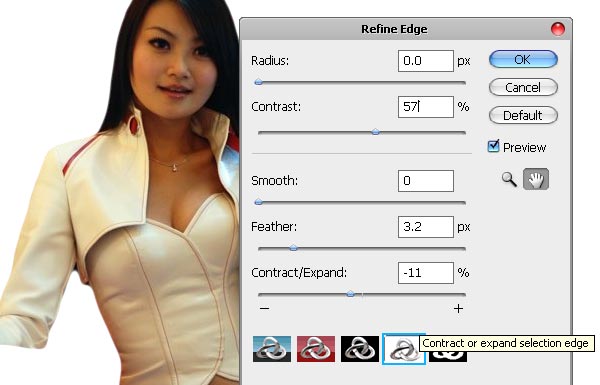
if you are using CS3 + version of Photoshop, it will be much easier for you to follow our today’s tutorial as a lot of features we are working with are simply unavailable in previous versions of Photoshop. One of them is the “Refine Edge” facility. Once the selection is loaded, go to refine Edges and add apply the following settings. Please note that setting vary depending on the selection you have made, let alone photo you are working with. if you used Magnetic Marquee Tool for cropping, use the same settings as we have here:
Step 2:

Next step is go to Levels by pressing Ctrl + L and apply these settings. Our purpose is to make the image a little more professional looking by adding light since the original image is extremely dark and pixelated. We will refine our photo by working with Curves and Levels, but lets start with levels, to get an overall lighter hue:

Step 3:

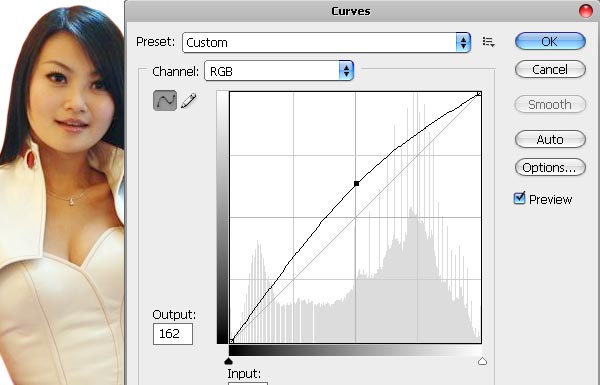
Next, go to Curves and using the RGB channel, lighten the image up, just the way you see on the illustration below:
Step 4:

Right now it looks far more professional, less dark and more vivid, almost like a real studio shot. it’s time to take the second image from our stock for this tutorial, the sky shot, and place it on your canvas, just below the cropped lady image.

Step 5:

Also, crop the orchids just the same way as you did with the lady and place the flower on your canvas.
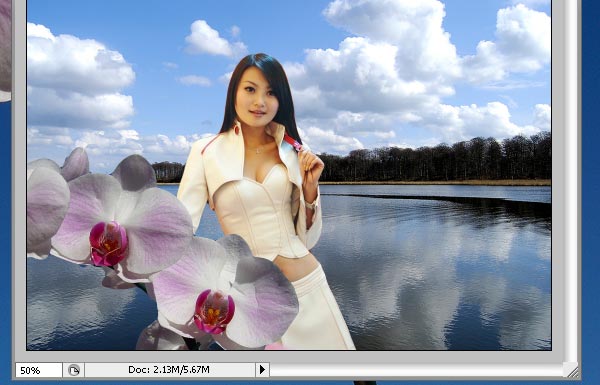
Duplicate the cropped orchid’s layer and place a few of them around the lady. We placed one on the front and the other behind her, so create the illusion as if she is surrounded by these gigantic flowers.

Step 6:

We personally found her outfit a little bit to complex so we decided to remove some lines, and all we have done is just using a Brush Tool with soft edge and color that matches the clothes she is wearing. Using a medium size brush, simply go over her outfit, covering the shades and sew-marks. Don’t worry if it doesn’t look too organic yet, we will make it look blended in well later.

However, to avoid your painting over clothes look out of place, we are going to swap the blending mode of this layer from normal to Screen…

Step 7:

Fixing the girl’s skin is going to be our next step in this tutorial. Using the Blur Tool, go over her skin and blur it, especially in places that got pixelated because of the JPG compression, that is to say — near the transition to other colors.

This should be your result so far, with the skin nicely smoothed, whitened outfit, overall photo adjustment of the layer:

Step 7:

We also want to add a nice twirly shape which will add some twist to our composition, so select any twirly shape you have in your arsenal, something that won’t be too complex or too. If you wish to avail of the same brush we have use, feel free to download the PSD file at the end of this tutorial.

Place the Shape onto the canvas, using White color as your Foreground color:

Step 8:

Press Ctrl + T to start transforming, Right Mouse Click to see the menu and select the “Distort” option, distorting the shape in just as you see below:

Go to Layer Styles option for this shape and apply glow using white color as well.

Step 9:

As any modern artwork, it should consist from plenty of layers with many little details. so Select the brush tool, and using the maple leaves brush, go to brush presets, apply the following settings:

and scatter it, just like this:

Step 10:

Use baby blue as your foreground and white as background colors, chaotically work with your brush across the canvas, trying to follow the flower and shape lines.

Step 11:

Set the blending mode of these leaves to “Screen”, in order to give it a nice semi-transparent yet vividly visible effect.

Using a much smaller  brush, and a darker baby-blue hue, create a new layer and go with the brush over the canvas again, concentrating on the lady’s layer:

Se the blending mode of the newly applies leaves to “Hard Mix”.

Step 12:

At this point, flatten your image.

We, however, since we wanted to make the PSD available for a download, grouped all the layers and duplicated the group. the first group got flattened and this is the layer we are going to work with, while the second group with all the layer intact remained hidden. In case anything goes wrong, you can always go back to the fully layered version and work from there.

So, the flattened canvas now has no layers, and we are using one image. Go to Curves again, and reduce the Red Channel, in the same manner as you see on the screenshot below:

Step 13:

After that, switch to RGB channel and lighten the image up a little bit:

Step 14:

Create a New Layer. Select the Gradient Tool, and using one of the default gradients called “medium Spectrum” (which is mild rainbow gradient), we are going to fill the new canvas with this gradient.

Simply pull the line from left to right, adding rainbow across the entire canvas.

Step 15:

Set the blending mode of rainbow layer to Screen. Now it’s semi visible, and we can see the angelic our artworks becomes:

Step 16:

Flatten the image once more (or, if you created group with unmerged layers before, simply merge the rainbow layer with the image below).

using your merged layer, go to Curves once more, and darken the image by pulling the RGB’s channel line downwards:

Step 17:

Go to Filter >> Sharpen >> Smart Sharpen…

Apply the following sharpening settings. This won’t only give you a very nicely sharp image, but thanks to the smart sharpening settings, it gives depth to colors by giving the field more gradient towards the colored edges:

Step 18:

Duplicate the layer.

Using the upper layer, go to Filter >> Blur >> Gaussian Blur and apply 3.7 pixels blur.

Step 19:

Set the blending mode of the upper layer (the blurred one) to Multiply. This will add a nice glowy effect without disturbing the sharpness of the image.

Done!

And here is our final outcome — Welcome to Thailand!

Hope you enjoyed the tutorial and please feel free to download the PSD file below, however it’s only distributed for learning purpose, commercial use is strictly prohibited. Stock images are the copyright property of their respective owners.

Play around with this tutorial and don’t forget to join our Facebook group and Flickr pool

download psd file

Tags: , ,

  1. tweety5710 says:

    Thanks for the great info. I love your whole sight. I’m disabled and trying to start a photo editing business just to have something to do. I would love any advice you want to share.

  2. Wow man, this site is B-E-A-U-T-I-F-U-L! Good job.

    For anyone serious about photoshop check this out (USA only) http://bit.ly/psoffer

  3. heru widyantoro says:

    it’s great… i like

    thanks for inspiration

    regards

    heru

  4. Great tutorial, thank you so much! Keep doing such things :)

  5. Doing the tutorial right now I downloaded the brushes but it says it’s not compatable with my PS I have CS4.

  6. I love your site I love the whole program in fact im gonna try it myself to see if its hard to create colors are awesome.

    Thanks for showing me how to do it.

    Richard

  7. Sooooooo Cuuuuuuuute Thaaaaaaanks

  8. Good, beaatufil efect armoni

  9. Very interesting use of layers, color, and a theme on tourist-oriented media…. But where is the PSD file to get the swirly flourishes for later use? I like those ones shown. Best wishes, and a wonderful 2010 to all!
    -will

  10. Very well written… Great tutorial, Appreciate your efforts. Thanks! :-)

    -Deepu

Trackbacks/Pingbacks

  1. Best 15+ PhotoManipulation Tuorials with Photoshop | Tutoreffic: Adobe Photoshop Tutorials | Photo Editing | Web Graphics | Adobe Illustrator Tutorials | After Effects | Fireworks - [...] Design Thai-Styled Angelic Artwork From Ordinary Photos [...]
  2. 30 Photoshop Photo Editing Tutorials - [...] Design Thai-Styled Angelic Artwork From Ordinary Photos [...]
  3. 38 Photoshop Photo Editing Tutorials | Programming Blog - [...] 24. Design Thai-Styled Angelic Artwork From Ordinary Photos [...]

Leave a Reply