


I get a lot of emails from beginners who want to learn the advanced tutorials that involve glow and sparkles effects, yet they are not very familiar with the pen tool and other tools that require a little bit of experience and knowledge, even if these tools seem basic to most of you. So, I decided to put up a tutorial that will allow beginners who are not yet familiar with Photoshop, to get started, make sparkles, glow and twirls without mastering the pen tools skills any deeper.
We will be making this tutorial, which will only be constructed from 3 images, 1 shape and a lot of basic Photoshop commands that will allow us to make a really cool composition… or shall I say — “hot”..? Please feel free to leave a comment or submit your result to our Flickr group.

Let’s get started. Photos used (All licensed under the Creative Commons for commercial use):


Step 1:
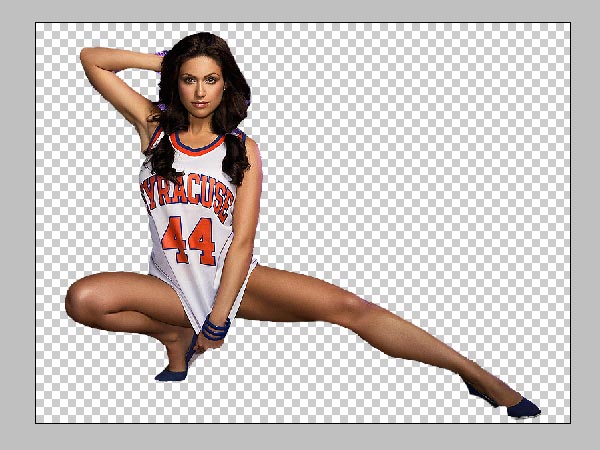
Crop the girl out of the image; it does not really matter hat method you use to chop the edges and background away, as long as you have the edges defined. We are not going to get into great details here as cropping is an ultra basic technique, all I’d say is that I used the Magnetic Lasso Tool to roughly extract the lady from the background. Don’t worry about the rough edges if you have any, we will be using a lot of filters so any mishaps will disappear later on.
Step 2:
Place the lady over the winter landscape and desize, according to your needs. We scaled the image down to about 60% and placed it in the middle of the canvas.

Step 3
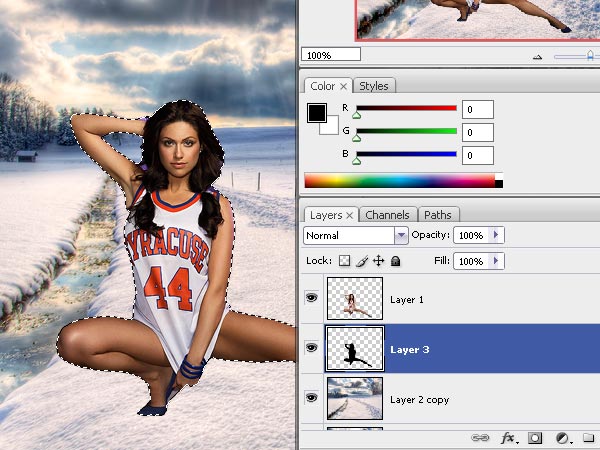
Now we need to make the girl’s image look like it’s blending in organically, and the easiest way to do so is to add a shadow that falls on the snow. Select the woman’s layer, and once you made the selection, create a New Layer underneath the girl’s image layer, and fill that selection with solid black color #000000.
Step 4
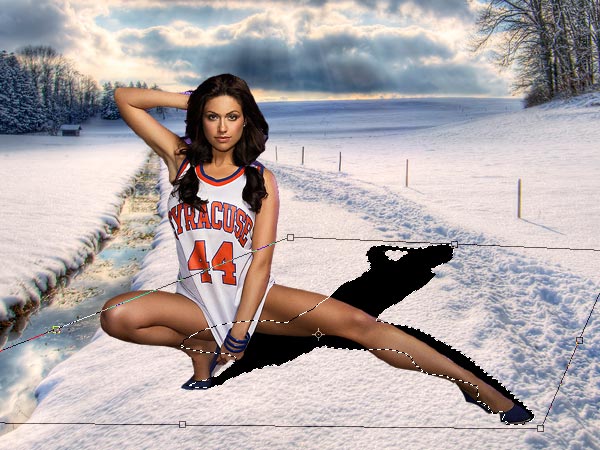
Now we are going to transform the selection, while the layer is still selected, press Ctrl + T and lay the shadow down, just the way you see in the illustration. Make sure that the shadow begins from lady’s legs, because when you start transforming, the shadow will move from under her legs and the only way to fix this is by dragging the bottom corners and adjusting them to “fit” to the main object.

omg, this looks totally awesome, like one of the best tuts out there!
[…] View original post here: Lorelei Web Design » Design A Very Hot Winter Composition in … […]
I love this tutorial, another great composition from you!
very nice tutorial
Please tell me where I can download those shapes !
[…] burn… >_< Let me send you to a place to show you how to make glowly cool stuff with PS. Design A Very Hot Winter Composition in Photoshop for Beginners | Lorelei Web Design Highest Quality Text Effect Tutorials for Photoshop | Lorelei Web Design __________________ […]
[…] 设计一个非常炎热的冬季组成 […]