

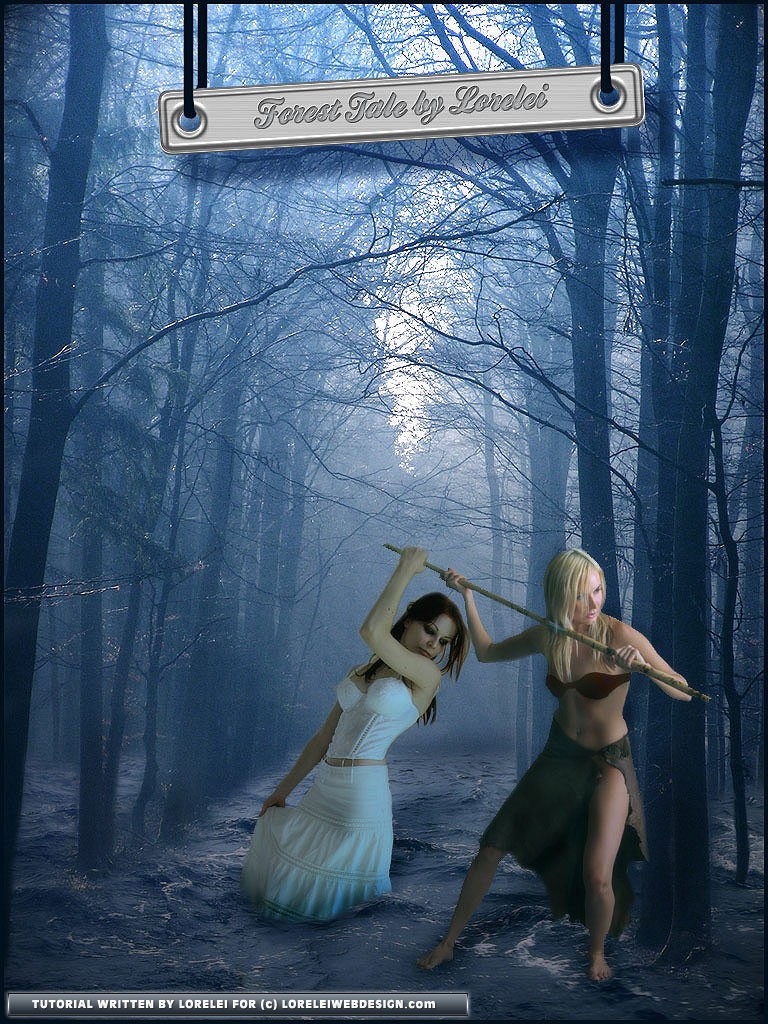
I know you love surreal fantasy tutorials. I did this tutorial over a year ago, but for some reason never got to publish it, and now, with a major revamp of loreleiwebdesign.com I’ve decided it’s high time to get back to this effect. I know this may be a bit old, but since it has never been published before, I hope you will find this useful. We will design a dark, surrealistic, and maybe also unrealistic “Forest Tale” scene in Photoshop.
This tutorial was made in CS2, so anyone who uses an old version of Adobe — don’t worry, this tutorial will work for you. Moreover, we don’t have that many complex effects here that would require a higher version.
You will need a few stock photos for this tutorial:
http://darkrose42-stock.deviantart.com/art/Stormy-sea-55513661
http://liam-stock.deviantart.com/
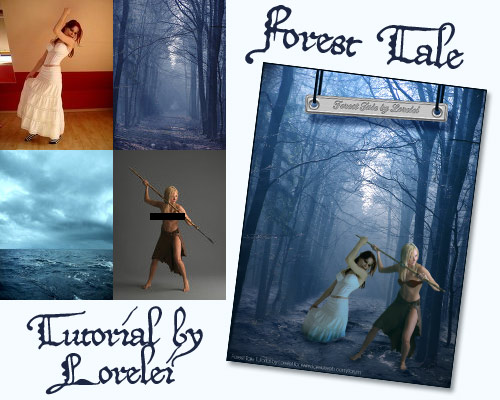
Take the layer with the forest scene and the waterscape (you can use practically any image you like. Since this tutorial was made over a year ago, I can’t recall any more whose images have been used, so if you have an idea, please let me know. However, the woman’s image was taken by Liam Stock at Deviantart.com.
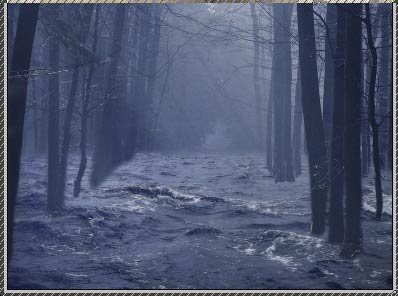
So, we take the waterscape and apply it to the forest image. Set the opacity of water to semi-transparent so that you can see the trees, and using the eraser tool, remove water from the trees..
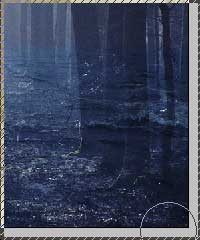
In a way that will allow you to see the trees standing in the water.
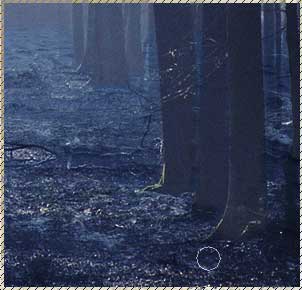
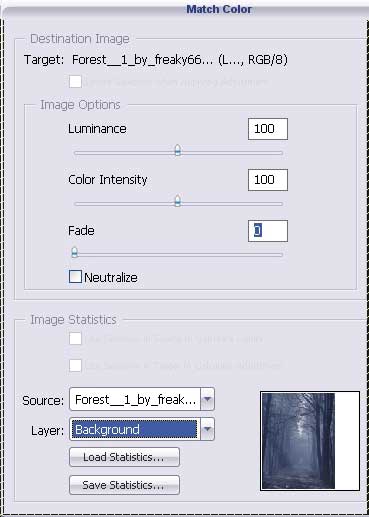
While the layer with the trees is selected, go to Image >> Adjustments >> Match Color and match the color of the waterscape with the forest. This way you will get an organically blended color scheme to start with.
You should see this on your screen after following the previous 2 steps. The key to success here is to use a small eraser tool with a soft edge when removing bits and pieces of water from the layer. if you did it right, you should see a real flood on your forest canvas.
Nest, crop the girl’s image, and place it on the screen. We consider the cropping technique to be rather basic and, therefore, won’t explain how to do that step by step. Roughly speaking, using Magnetic Lasso Tool or a Pen Tool with the magnetic option, whoever works for you will be fine as long as the image is somewhat cropped.
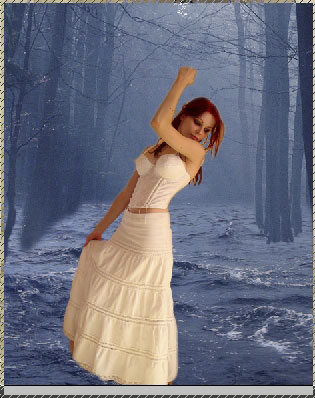
Go back to the water image and use the Burn Tool to burn the edges of the water layer just near the trees to create an illusion of the trees really standing inside the water, and if they did, the area at the bottom would have been slightly darker.
Now we are going to match the color again, this time for our female figure, and we will match colors between her and the waterscape since it’s lighter and will not affect the overall color of her layer. Set “fade” to about 7 or so, if you overdo it, you will have an extremely bluish layer, so not only will it look monotone and not very organic, but it is also not going to be beautiful.
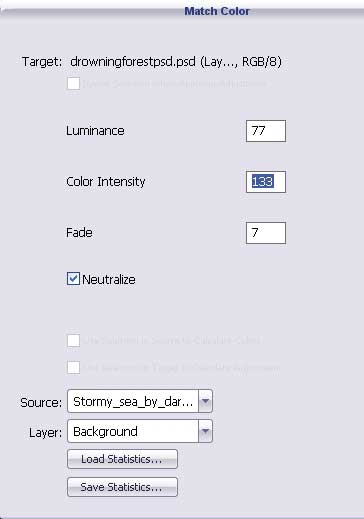
here is how it’s supposed to look with the layer of the gild being matched to the color of the water:
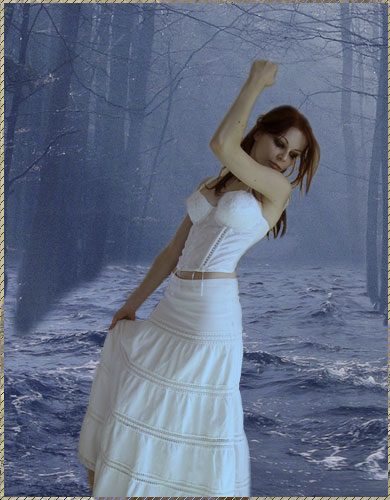
Like with the trees, we want to make her look like she is standing (or drowning) in the water. The best way to do that is to take an eraser tool and remove a part of her skirt, let us say about 1/3, and when you do that, make sure you don’t just cut a straight horizontal line, it has to be curved around her body to complement the illusion of her standing inside the water.
Go back to the Burn tool and use a soft brush with the parameters below…

I like how you constructed the background, but the female figures look pretty strange tbh. I’m not sure why one woman is submerged and the other isn’t at all?
I totally agree, I don’t like the result myself, but this tut was ready laying in my harddisk and gathering dust, so I thought I will publish it, who knows, some less experienced users might like it.
By the way, I still didn’t thank you I think, it was me who emailed you about the members script — after I had seen how much amember costs I decided to give up on the idea LOL
Thanks anyway for your comment and info!
[…] Art Forest Flood Tale […]
Nice tutorial , though I have to say it doesn’t look very realistic. The front characters are in high contrast compared to the background image.
yeah, I am afraid that this is just one of the 3 main problems with this tut 🙂
Very cool
Good
Thank you
oh man!!! can u c that a girl it’s taller than the other :))) on has 3 m and the other 1,5 m :))))))) cool i made this mistake when i was 14 years old :))) keep on tryin…..
…like I said, it’s a damn old tut lol, maybe I was 14 back then 😉
you guys are amazing artist..I just use one of the trick and got appreciated by client.thank you very much for sharing your knowledge.smith
lol for your avatar
[…] Art Forest Flood Tale […]
[…] 56- Art Forest Flood Tale […]