


This is what we are going to do today, this very simple tutorial will lead to an awesome effect!

Start off by creating a new canvas, 450*250 pixels. It doesn’t matter with what colour you fill it as we will overlay it with a gradient effect later.
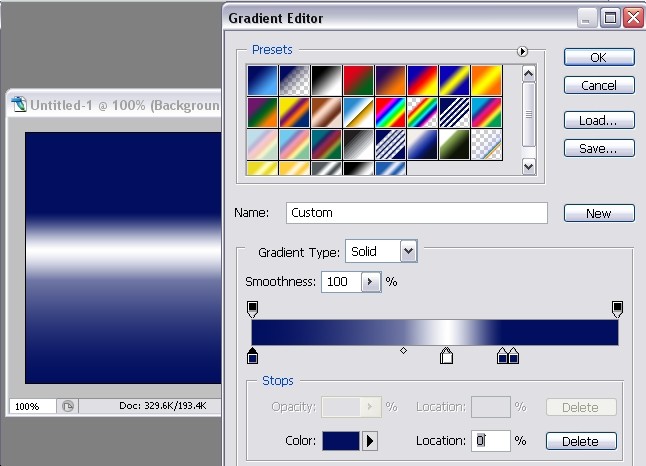
Make a new layer, and fill it with a gradient overlay, to do so, just go to Layer >> Layer styles >> Gradient. Organize the colour buckets as shown on the picture below, here are the colours you would need, from left to right:
#020e60 … #fefefe … #020f5e… #020e60
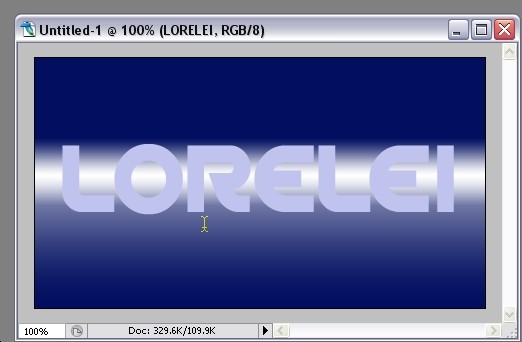
Select the typing tool and type a word right over the whitish line. Don’t choose a slim font, we used “Spin Cycle” here, download it free at dafont.com
Go to Layer >> Layer styles >> Blending options, and apply these settings
Blending options:

Drop shadow:

Inner shadow:

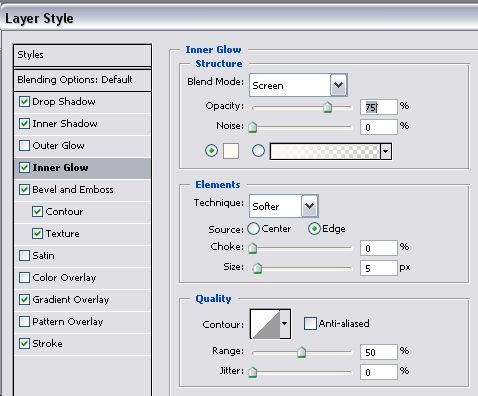
Inner Glow:
Bevel and emboss:
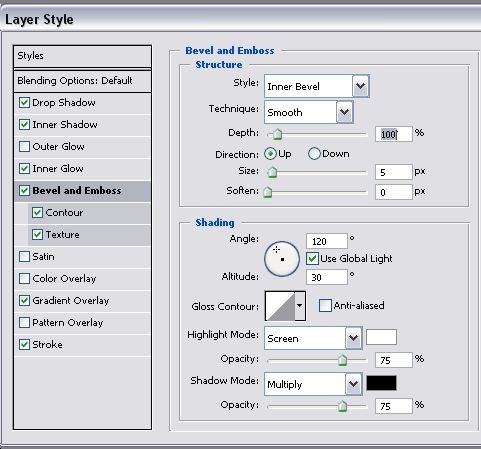
Contour: http://www.loreleiweb.com/preview/newtutie/9.jpg
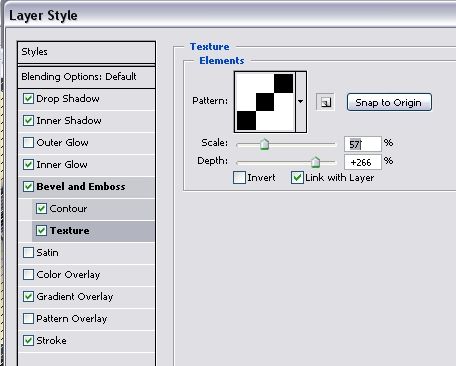
Be sure to copy all the settings correctly, else it won’t look the same, especially the gradient and bevel settings.
Texture:
Colours for inner gradient overlay, from left to right:
#000000 … #909090 … #fdf7f9 … #a7a7a7 … #787878 … #ffffff
Gradient Overlay:

I used to be a member in your forum, what happened to it? I see most of the tutorials moved over here. Will LW forum be closed?
That’s really cool…
[…] 1?Awesome Text Effect With Sparkles 80’s Disco Style […]
[…] Awesome Text Effect With Sparkles 80’s Disco Style […]
Cool gonna try this