

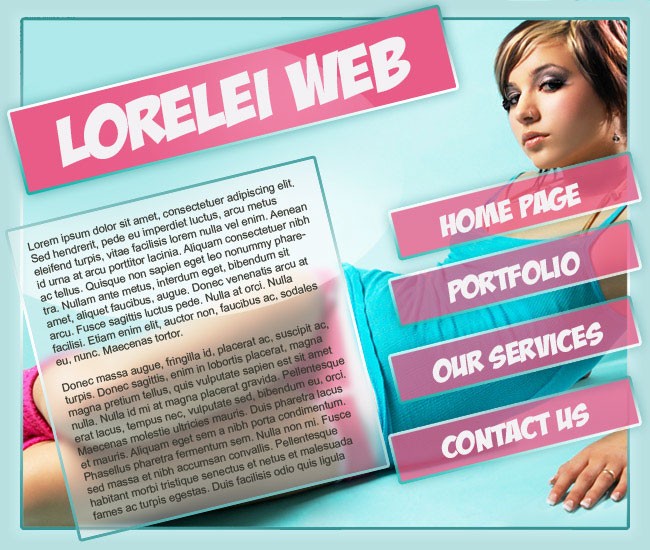
This is the template we are going to make…
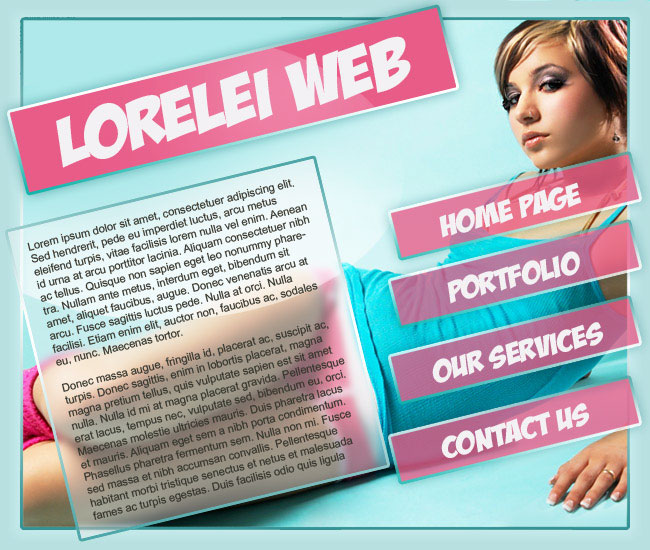
OK, lets get started…
Make a new canvas, 650 * 550 and fill it with #cff3f5
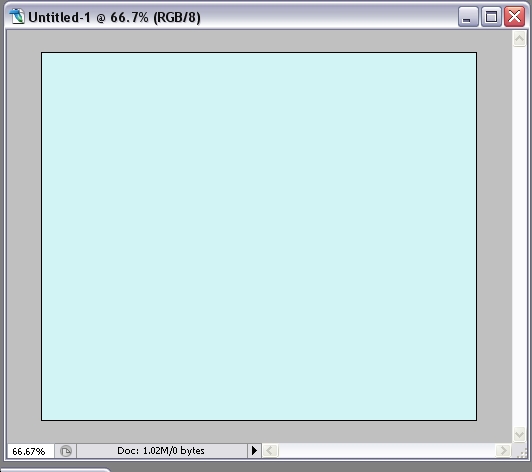
Press Ctrl + A on your keyboard to select the canvas fully.
Go to Select >> Modify >> Border and add decide how many pixels from each side do u want your template body to be.
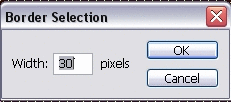
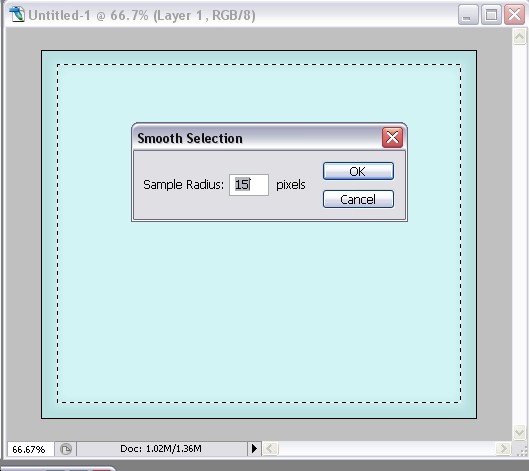
If you wish, you can also smooth your border, but this step is option, yet if you want to do it, do it now.
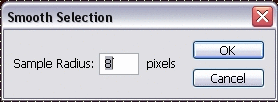
Make a new layer, and while the frame around the template’s body is still selected, and smooth mode is on, paint the borders with the #b8e0e1 colour. It will smoothed and automatically create the effect of brighter border around the main body’s edges.
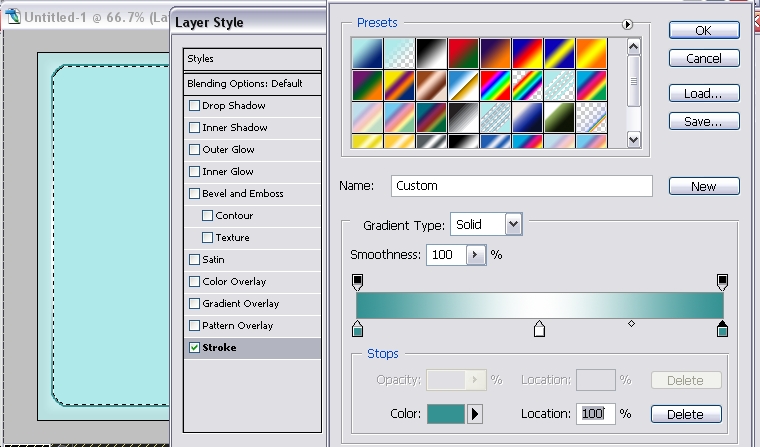
Make sure you switch to the new layer you have created, and go to Layer >> Layer Styles >> Blending Options. When the styles window is open, apply this border (stroke) effect:
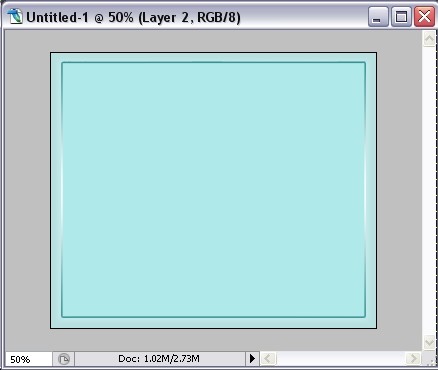
This is how the canvas will look so far (our final result will be without rounded borders.
Take a girl’s photo, make sure it is of an excellent quality, otherwise your final result will be terrible, this is the girl we used…
(Wanna know who is she, eh?) Well, we used Hannabeth’s photo by Cherie Roberts kind permission. If you wanna use her material, remember its HER copyright photo, we use it here for demonstration of the technique only.)
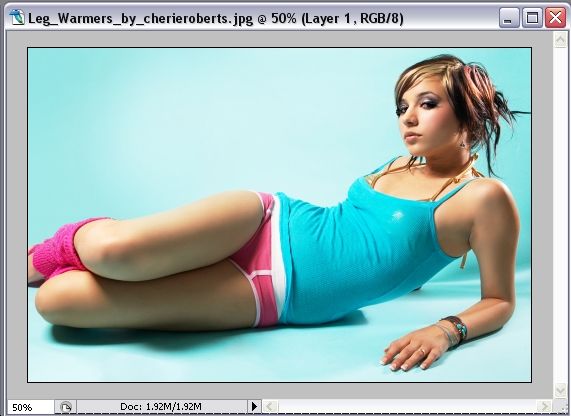
Copy the girls photo to a clipboard and paste it unto the template canvas.
Press Crtl + T to rotate the photo, and rotate it leftwards in about 20-30 degrees… (see pic below)
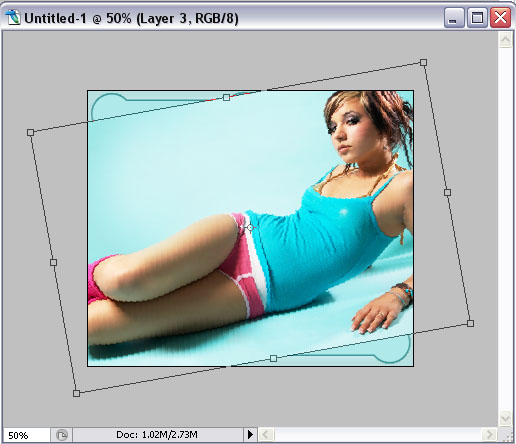
Select the eraser tool with round sharp edge (not soft!) and remove the girl’s picture from outside the border. make sure you do not remove too much or, on the contrary – not enough.

Make a new layer.

Nice tut, but if I may critique a little bit.
The type in the main body of text is not contrasting and difficult to read due to the translucency with the girls legs in the background.
Maybe an old caption trick may fix that by adding a white hard glow around the text.
Any how. nice work.
[…] This post was mentioned on Twitter by HowDo.us, Lars Moelleken. Lars Moelleken said: RT @LoreleiWeb Sexy Portfolio Template Making a Gorgeous Splash Page http://bit.ly/67u8lL […]
I like this alot gotta use it, thanks!
[…] 6. Sexy Portfolio Template Making a Gorgeous Splash Page […]
[…] 6. Sexy Portfolio Template Making a Gorgeous Splash Page […]
[…] 6. Sexy Portfolio Template Making a Gorgeous Splash Page […]