


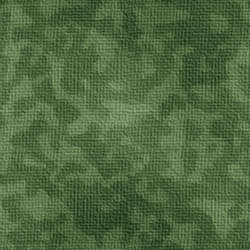
This tutorial will show you how to make a background which imitates classical army clothes. This could be used if you apply a military style clothes in a photo manipulation, or want to have such a stylish look as a background to your website, in this case however, make sure your background is tillable before you use it on the web. Your final result will be this image:
First of all, create a new layer, 250*250 is what we used here but the size is up to you. Making it smaller or bigger makes no difference.

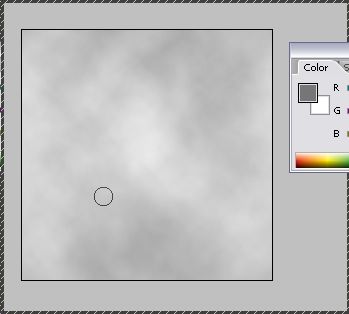
Set your first Colour to #777676 (gray) and se secondary to #FFFFFF (white) and go to Filter >> Render >> Clouds. Apply clouds once as on example below.
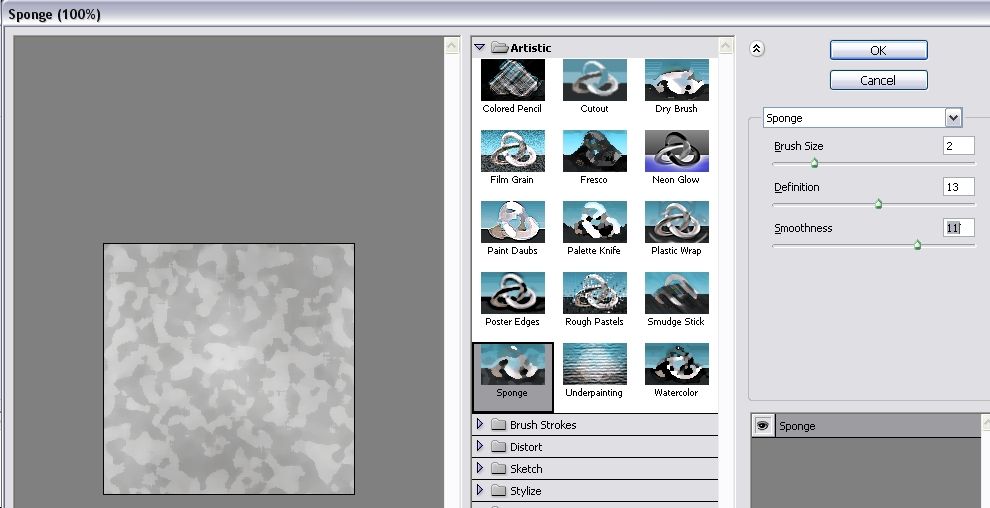
Then go to Filter >> Artistic >> Sponge … and set the following brush size, definition and smoothness to the sponge effect.
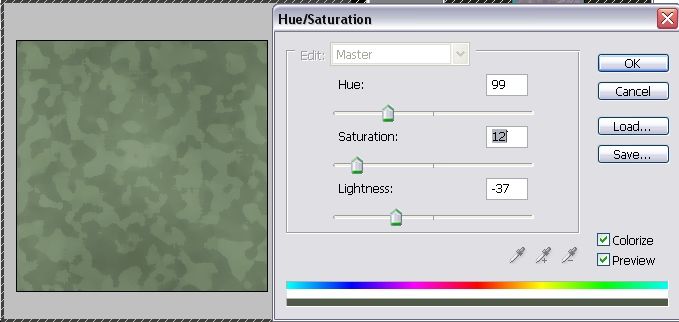
Now it’s time to paint this surface in green. In order to do so, press Ctrl + U, check the “colorize” box and drag the arrow to the green range of hues. We set it to 99/12/-37 but feel free to play around a bit with the colour, as long as you keep the right greenish colour.
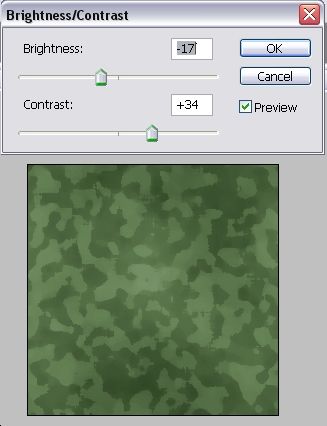
After clicking “OK”, go to Image >> Adjustments>> Brightness / Contrast.
Reduce brightness to -17 and add contrast to +34. This will make the surface a lot less dull.
Duplicate the layer.
