
This tutorial was originally posted on loreleiweb.com but due to technical reasons moved. The tutorial remains a copyright property of Lorelei (me!)
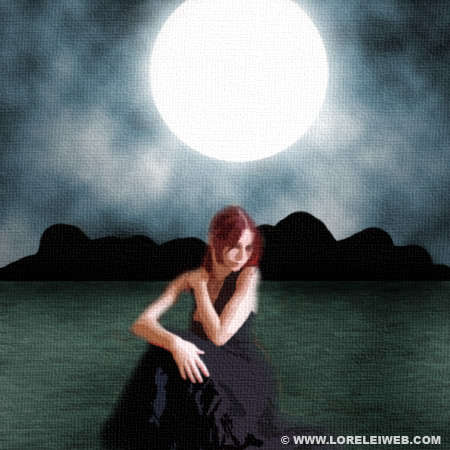
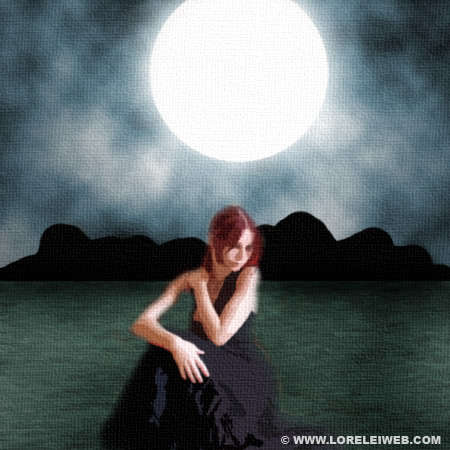
This tutorial’s purpose is to make an imitation of real painting, made using semi dry brushes.
The final result will be this:
so, lets get started… Make a new canvas, 450*450.

White your colours are set to black and white, go to Filter >> Render >> Clouds and apply the clouds effect (once)

Using the marquee tool, select half of the canvas (or a bit more than half, as this will be out “sky”) and add a lot of Contrast (Image >> Adjustments >> Brightness / Contrast) as shown on the picture below.

While the upper part of the canvas is still selected, go to Image >> Adjustments >> Hue / Saturation and set the following settings to colorize the “sky” and make it bluish. Don’t forget to check the “colorize” box when applying the settings.

After finishing the color process, press Shft + Ctrl + I to inverse the selection.
Now that the lower half of the canvas is selected, go to Filter >> Blur >> Motion Blur and apply the following horizontal blur…

Create a new layer. While half the canvas is still selected, fill it with white (means you will only have white inside the selection).
Go to Filters >> Noise >> Add noise, and apply these “noisy” settings:

Go to Filter >> Blur >> Motion blur and again apply the horizontal blur, only this time upon the noise effect. We are trying to paint the calm water, we need lots of tiny waves and this would be the easiest way to make them)



I first time visit in this blog. I find this blog is useful and workable.
very nice tut liz looks like something i have made some time ago
looks pretty cool. Didnt know that the canvas texture could look so real. cool tut
Remarkable lesson. You have again surpassed yourself. Continue in the same spirit.
P.S. Pardon, for bad English language. )))
oh well here ar my 2 results 🙂
First one
http://img296.imageshack.us/img296/362/psmoonlightrs8.th.jpg
and the second:
http://img299.imageshack.us/img299/7239/psmoonlight2li0.th.jpg
I hope these quality images dont effect my business!
What an amazing finish,really is a cool application.
I think its a cool picture good practice for the beginners to create their samples and nice work and good for upgrade themselves.
HI,
I am shahzad zar from pakistan karachi,
Very beautifull web site and art work,,,
Please visit my web site http://www.shahzadzar.com
http://www.artingallery
Thanks,
Very nice site!
I am not a graphics designer and do I not have any photoshop software. However, I do have a photo I want printed on canvas with this effect. Would you be interested in the job or be able to point me to someone who would be? Thanks.
you need to explain a bit more like how to get to the lightening effects i’ve spent more time trying to find things you didn’t say then actually doing the tutorial.