

you can use our texture image, just download the PSD file and pull it from there, or alternatively load it yourself. Click HERE to download the pattern image.
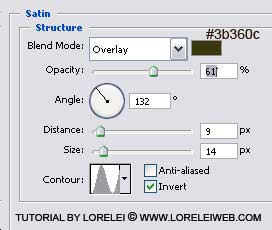
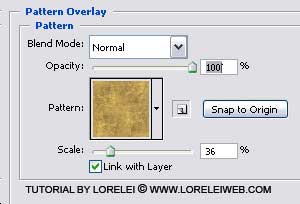
Do not skip this step, else your gold will look too dull without soft shades that this pattern overlay gives. If you do not have the pattern image, you may use ours, from Herringbone Text Effect – yes, I used the same one, how creative.
This is what you got so far:

Now, take the eraser tool, round, 9px, and draw a straight horizontal line in the middle of the text, as shown on the image below:
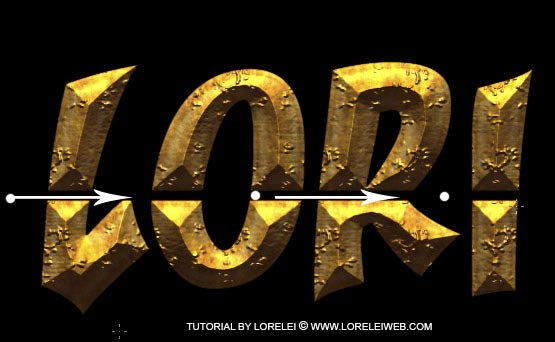
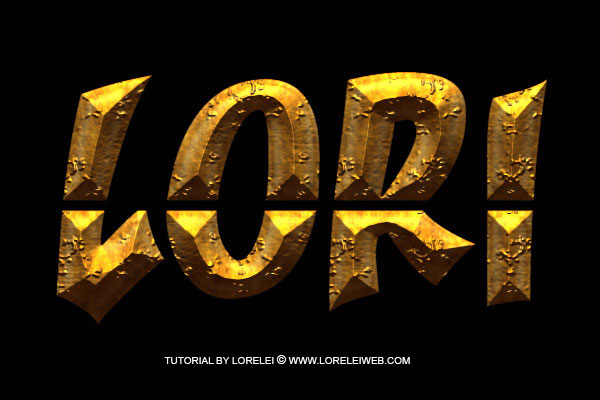
That’s it. Your result is ready. Hope you enjoyed the tutorial, please ask any question below or just download the psd file and analyze yourself.



nice font, will use in future websites, can you put some font art on this blog?
good tut….=P
Hi, in mail i received you had written and asked for tutorials you said not text effects and other… then why this text effect tutorial ?
Hi 😛 I’m stuck at the Pattern & Texture overlay. I dont have the “types” 🙁 Please help.
Excellent tuts.
thks
[…] 5?Photoshop Tutorial – Ancient Rough Gold Effect, Perfect for Game Logos and Text […]
[…] Ancient Rough Gold Effect, Perfect for Game Logos and Text […]
thanks for good tutorials
[…] Estilo pedra Compartilhe isso:TwitterFacebookGostar disso:GosteiSeja o primeiro a gostar disso. […]
[…] 16. Efeito estilo pedra […]
[…] 16. Efeito estilo pedra […]
[…] 5.Ancient Rough Gold Effect […]
[…] 5.Ancient Rough Gold Effect […]
[…] 7.Photoshop Tutorial – Ancient Rough Gold Effect, Perfect for Game Logos and Text […]
[…] 5.Ancient Rough Gold Effect […]
This site is just awesome. I’ve ask these informations a great deal and I
view it that is good written, easy to understand. I congratulate you because of this research
that I’ll tell to prospects around. I ask you
to recommend the gpa-calculator.co page where each pupil or university student can find ratings
gpa rating. Have a great day!