Posts made in December, 2009

Design A Professional Art Grunge Web Layout

»Posted by on Dec 19, 2009 in Photoshop Tutorials | 0 comments

Design A Professional Art Grunge Web Layout

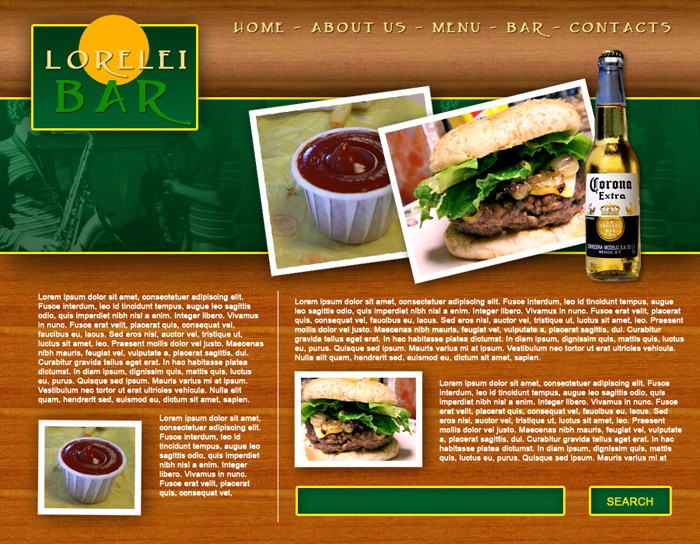
Ok, today you will be making this incredible web layout.. i personally think it’s one of the most professional tuts I have made recently but that is for you to judge.. anyway, here is your result:

Before you get started, you need some resources, such as grungy texture and photos for the background. We used two images and blended them, first was a fabric texture taken from here .

Create a new canvas, 750*602. Paste your fabric texture unto the canvas.

Since our canvas is very brights, go to Image >> Adjustment >> Brightness / Contrast and reduce both Brightness and Contrast, as shown on the picture below.

Take some grungy texture. We used a dark paper provided by nighty.

Paste it unto the existing fabric canvas, and set the new layer’s opacity to about 30%.

Opacity may vary, depending on the desired effect. so far, out template’s background interface looks like this:

Select the Rectangular marquee tool, and draw a rectangular as shown on the illustration below:

Now, select the gradient tool, select the gradient – “black to transparent” and draw a line from right to left, so that your box will have a mild gradient as shown below:

Make a new layer. Using the marquee tool again, draw a box at the upper left corner, like this:

Go to Layer >> Layer styles >> Stroke and apply these settings:

For the gradient effect we used these colours: #603f16 … #c4843a … #603f16

read more

Sexy Portfolio Template Making a Gorgeous Splash Page

»Posted by on Dec 19, 2009 in Photoshop Tutorials | 2 comments

Sexy Portfolio Template Making a Gorgeous Splash Page

This is the template we are going to make…

OK, lets get started…
Make a new canvas, 650 * 550 and fill it with #cff3f5

Press Ctrl + A on your keyboard to select the canvas fully.

Go to Select >> Modify >> Border and add decide how many pixels from each side do u want your template body to be.

If you wish, you can also smooth your border, but this step is option, yet if you want to do it, do it now.

Make a new layer, and while the frame around the template’s body is still selected, and smooth mode is on, paint the borders with the #b8e0e1 colour. It will smoothed and automatically create the effect of brighter border around the main body’s edges.

Make sure you switch to the new layer you have created, and go to Layer >> Layer Styles >> Blending Options. When the styles window is open, apply this border (stroke) effect:

This is how the canvas will look so far (our final result will be without rounded borders.

Take a girl’s photo, make sure it is of an excellent quality, otherwise your final result will be terrible, this is the girl we used…

(Wanna know who is she, eh?) Well, we used Hannabeth’s photo by Cherie Roberts kind permission. If you wanna use her material, remember its HER copyright photo, we use it here for demonstration of the technique only.)

Copy the girls photo to a clipboard and paste it unto the template canvas.
Press Crtl + T to rotate the photo, and rotate it leftwards in about 20-30 degrees… (see pic below)

Select the eraser tool with round sharp edge (not soft!) and remove the girl’s picture from outside the border. make sure you do not remove too much or, on the contrary – not enough.

Make a new layer.

read more

Design a Military Clothes Texture or Pattern

»Posted by on Dec 18, 2009 in Photoshop Tutorials | 0 comments

Design a Military Clothes Texture or Pattern

This tutorial will show you how to make a background which imitates classical army clothes. This could be used if you apply a military style clothes in a photo manipulation, or want to have such a stylish look as a background to your website, in this case however, make sure your background is tillable before you use it on the web. Your final result will be this image:

First of all, create a new layer, 250*250 is what we used here but the size is up to you. Making it smaller or bigger makes no difference.

Set your first Colour to #777676 (gray) and se secondary to #FFFFFF (white) and go to Filter >> Render >> Clouds. Apply clouds once as on example below.

Then go to Filter >> Artistic >> Sponge … and set the following brush size, definition and smoothness to the sponge effect.

Now it’s time to paint this surface in green. In order to do so, press Ctrl + U, check the “colorize” box and drag the arrow to the green range of hues. We set it to 99/12/-37 but feel free to play around a bit with the colour, as long as you keep the right greenish colour.

After clicking “OK”, go to Image >> Adjustments>> Brightness / Contrast.

Reduce brightness to -17 and add contrast to +34. This will make the surface a lot less dull.

Duplicate the layer.

read more

Design Animated Digital Clock With Live LCD interface

»Posted by on Dec 15, 2009 in Photoshop Tutorials | 1 comment

Design Animated Digital Clock With Live LCD interface

Ok, we will make an animated digital clock, same like most of us have inbuilt in the radio…

Start off by making a new canvas, 350 *200, and fill it with black (#000000)
First we will make a frame for our clock. Select the entire canvas and go to Select >> Modify >> Border. Add a 20 px border (the selection will just “move” 20 pixels inside)

Now, in order to select the area that is outside the box (and make a frame), go to Select >> Inverse. Now the 20 px border is selected.
Make a new layer.
Fill it with any color, we used dark gray but it’s pretty much optional.

While this new layer is selected, go to Layer >> Layer Styles >> Options, and apply these settings, in order to get a stylish metal frame.

Drop Shadow
Inner Shadow Use the #CCCCCC color
Inner Glow Use the #666666 color.
Bevel and emboss
Contour Use the “Gaussian” shape
Satin Use the “Rolling Slope” shape, #FFFFFF colour.
Gradient Overlay Gradient between #CCCCCC and #666666
Stroke

This is the frame you got…

Now to the more complicated part. Select the typing tool and type
88:88

You have to use some “digital / LCD” font for this. We used “DS Digital”, which you can download free at dafont.com. Size: 123 px, colour: #3d3d3d

read more

Design a High Resolution Christmas Glossy Icon

»Posted by on Dec 12, 2009 in Photoshop Tutorials | 1 comment

Design a High Resolution Christmas Glossy Icon

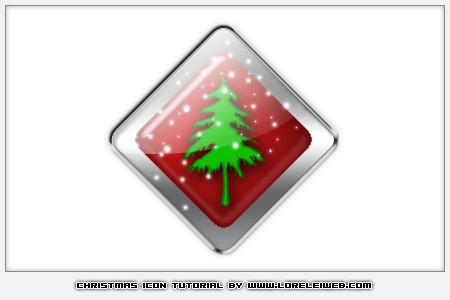
Okay, it’s been a while since I released a tutorial and it’s about time for a new lesson, so I thought Christmas would be most inspiring idea. We will be creating this high-resolution glossy Xmas icon:


First step is make a new canvas n your desired size. Select the Custom Shape Tool “diamond card” (should come default with Photoshop CS2).

Draw a diamond while holding the Ctrl button, to avoid it loosing symmetrical proportion. The color you use does not matter since we will overwrite these settings with styles.

Hold the Ctrl button and click on the layer thumbnail to get the shape selected. Go to Select >> Modify >> Contract, and contract the selection in 15 pixels. this would determine the frame’s thickness, so its up to you what size to select. Once you are done, you will have sharp edges, so go to Select >> Modify >> Smooth, and apply it, using 10px smoothing effect as you can see below.

For your convenience, make a new layer and fill the selection in lighter colour, so you would be able to see more easily which layer is where.

Now, make sure in layers thumbnail panel thefirst (bigger) diamond card is selected, ad go to Layer >> Layer styles >> Options. Apply the following settings.


The variations of gray and black do not particularly matter, as overall we want a greyish gradient and whatever shared you choose — it will look great. Here is the result so far.

Time for the second, lighter and smaller box, so select it in the layers panel and go to Layer >> Layer styles >> Options, apply the following settings:

Use the #670000 colour for inner shadow.

For inner shadow use #e00a55

read more