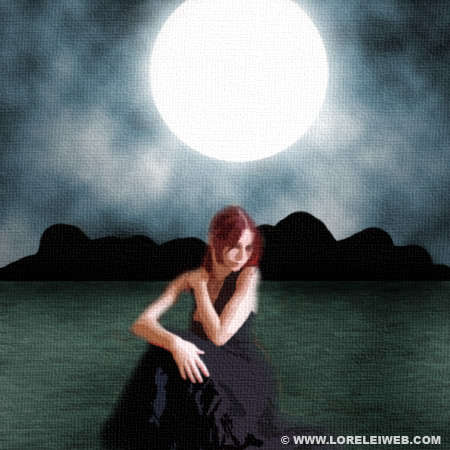
Original Art Painting On a Digital Canvas – Photoshop Tutorial
T
This tutorial’s purpose is to make an imitation of real painting, made using semi dry brushes.
The final result will be this:

so, lets get started… Make a new canvas, 450*450.
White your colours are set to black and white, go to Filter >> Render >> Clouds and apply the clouds effect (once)
Using the marquee tool, select half of the canvas (or a bit more than half, as this will be out “sky”) and add a lot of Contrast (Image >> Adjustments >> Brightness / Contrast) as shown on the picture below.
While the upper part of the canvas is still selected, go to Image >> Adjustments >> Hue / Saturation and set the following settings to colorize the “sky” and make it bluish. Don’t forget to check the “colorize” box when applying the settings.
After finishing the color process, press Shft + Ctrl + I to inverse the selection.
Now that the lower half of the canvas is selected, go to Filter >> Blur >> Motion Blur and apply the following horizontal blur…
Create a new layer. While half the canvas is still selected, fill it with white (means you will only have white inside the selection).
Go to Filters >> Noise >> Add noise, and apply these “noisy” settings:
Go to Filter >> Blur >> Motion blur and again apply the horizontal blur, only this time upon the noise effect. We are trying to paint the calm water, we need lots of tiny waves and this would be the easiest way to make them)